Supported Markdown Blocks in the Space Editor
Peerdraft supports standard GitHub-Flavored Markdown for headings, paragraphs, lists, bold/italic, code, links, images, and blockquotes. It also supports Obsidian-style blocks (the syntax used by the Obsidian note app), such as callouts, wiki links, note embeds, and frontmatter (metadata at the top of a document). This page shows the blocks Peerdraft’s Space web editor can render and how they look as live widgets.
Open a document in a Space to try these blocks. In the live editor, most blocks render as widgets when your cursor is outside the block. Move the cursor inside a block to see the raw Markdown and edit it.
Callouts
Callouts are styled boxes that draw attention to part of a document. Use the standard Obsidian > [!TYPE] syntax. The screenshots below show how they look in the live editor, where each callout is a card with a colored left border and an icon.
> [!NOTE]
> Useful details.

> [!TIP]
> A useful tip.

> [!IMPORTANT]
> Read this first.

> [!WARNING]
> Something might break.

> [!CAUTION]
> Handle with care.

> [!TODO]
> Ship the feature.
> - 1
> - 2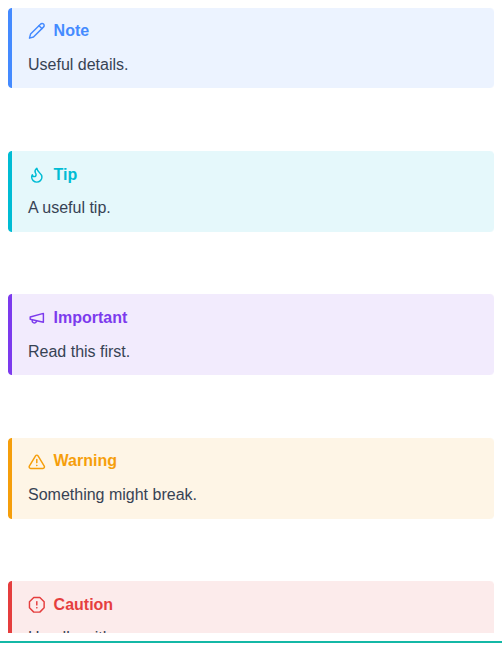
Supported callout types
|| Type | Purpose | Example |
||-------------|---------------------------|--------------------------|
|| !NOTE | General note | Useful details |
|| !TIP | Helpful suggestion | A useful tip |
|| !IMPORTANT | Highlight key information | Read this first. |
|| !WARNING | Flag potential issues | Something might break. |
|| !CAUTION | Warn about risk | Handle with care. |
|| !TODO | Track action items | Ship the feature. |
You can also add other Markdown inside a callout, such as bullet lists. You can override the default title by adding text after the marker:
> [!WARNING] My title
> This warning uses a custom title.
Tables
Use tables to organize information in rows and columns. Tables use GitHub-Flavored Markdown syntax, and Peerdraft renders them with styled headers and rows.
|| Name  | Role     | Status ||
|| ----- | -------- | ------ ||
|| Alice | Engineer | Active ||
|| Bob   | Designer | Active ||
|| Carol | PM       | Away   ||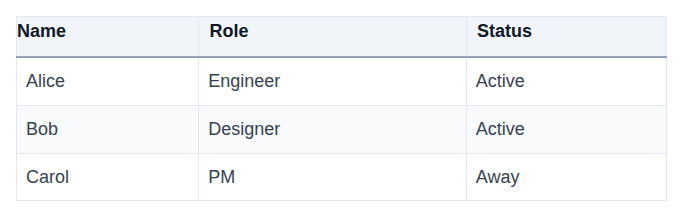
Math
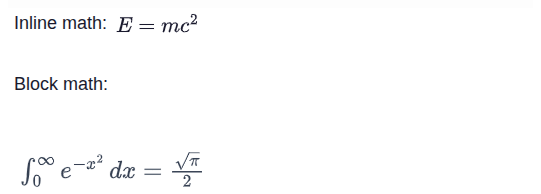
Use math to write equations. Type math between single dollar signs for inline math, or double dollar signs for a block of math. Peerdraft renders both.
Inline math: $E = mc^2$

$$
int_0^infty e^{-x^2} , dx = rac{sqrt{pi}}{2}
$$
Note embeds
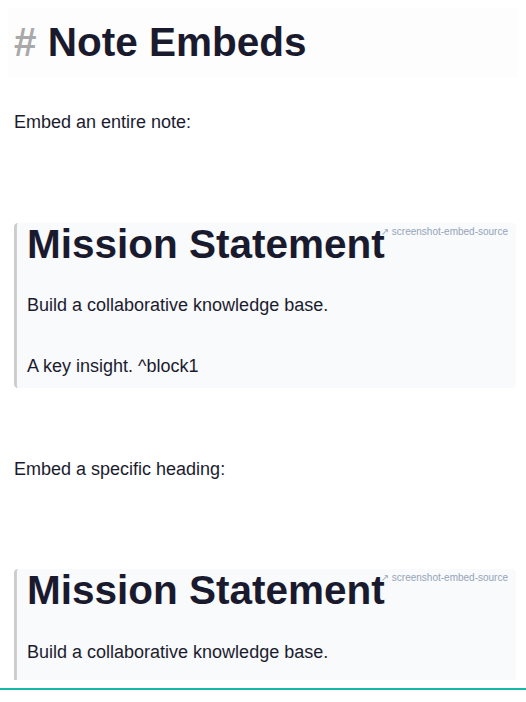
You can embed content from another document in the same Space directly into the current document. Use Obsidian double-bracket syntax to embed a whole document, a heading from a document, or a specific block from a document.
A block reference points to a single paragraph or other block that has a block ID. To create a block ID, add ^blockId at the end of the target paragraph or block in the document you want to embed from. Then embed it with ![[Document Title#^blockId]].
The second example below points to the heading Mission Statement in the Project Overview document. The third example points to the block with ID block1 in the Project Overview document. Replace Project Overview with the document you want to embed from, Mission Statement with the heading you want, and ^block1 with the block ID in that document.
![[Project Overview]]
![[Project Overview#Mission Statement]]
![[Project Overview#^block1]]
The embedded note appears as a live widget. Click the widget body to edit the ![[...]] source, and click the small corner badge to open the source note.
Frontmatter
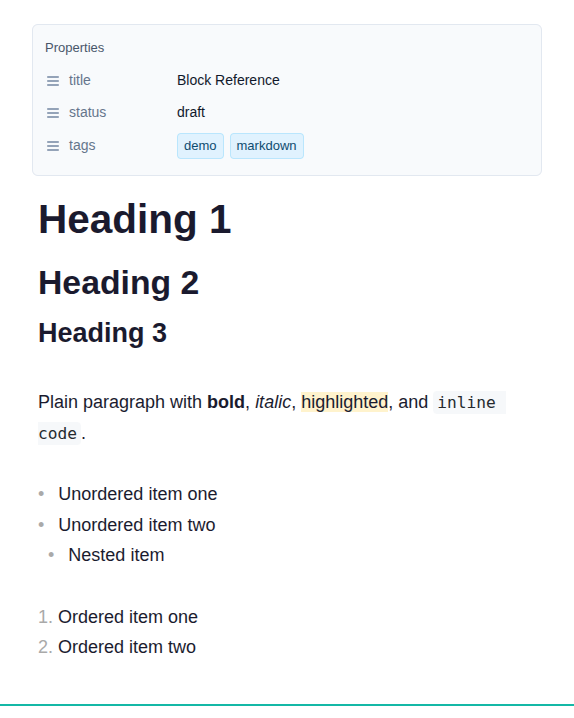
You can add metadata, called frontmatter, at the top of a document. Frontmatter is written as key-value metadata and sits between two triple-dash lines (---). Peerdraft renders frontmatter as a Properties panel at the top of the document.
Click the Properties panel to enter edit mode. A single value appears as text, a list of values appears as small labels, and a nested group of values can be expanded to show its contents.
---
title: Block Reference
status: draft
tags:
  - demo
  - markdown
---
The Properties panel appears at the top of the screenshot in the Common Markdown section below.
Wiki links and attachments
In Peerdraft, a Space is a shared workspace that contains your documents. Obsidian-style [[...]] wiki links point to other files in the same Space. You can also change the displayed text with a pipe:
[[Project Overview|read this first]]Unresolved wiki links appear dashed gray; resolved links are shown in cyan and underlined. Click a resolved wiki link to open the note. If the note does not exist, Peerdraft offers to create it.
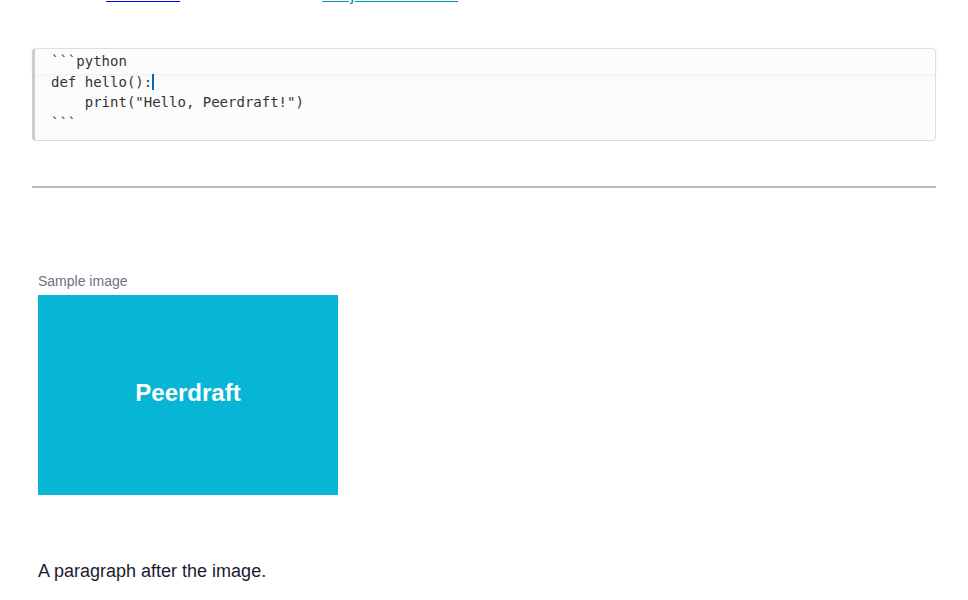
You can also insert images from files stored in the Space with double brackets and set how wide they appear. For example, the image ![[image.png|300]] displays at a width of 300 pixels. Set both width and height with ![[image.png|100x100]].
A wiki link to [[Project Overview]].
A wiki link with an alias: [[Project Overview|read this first]].

![[image.png|300]]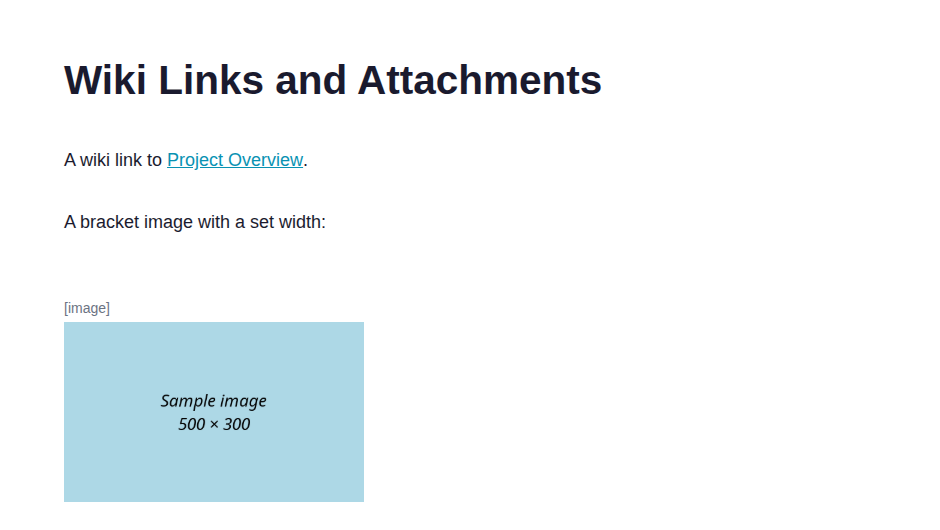
Images
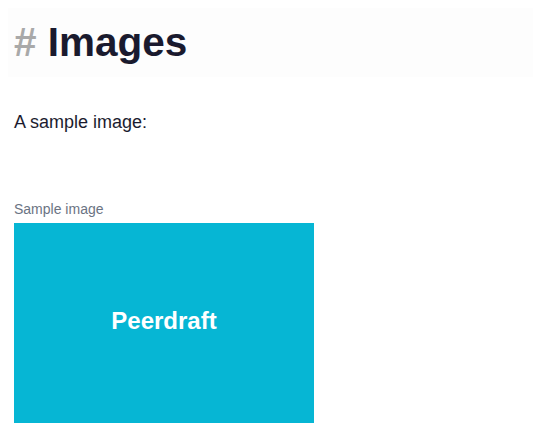
Use images to add pictures to a document. Standard Markdown images are supported and can point to any URL. You can set the width, or both the width and height, in the alt text:

For images stored in the Space, use the ![[filename|width]] wiki-link attachment syntax.
Common Markdown
Peerdraft also supports common Markdown and Obsidian-style text formatting: headings with #, headings with underline characters, paragraphs, bold, italic, inline code, ==highlights== for highlighted text, unordered and ordered lists, nested lists, blockquotes, code blocks set off with triple backticks, horizontal rules, strikethrough, task lists, and links.
The ==...== syntax is Obsidian-style, not part of the CommonMark standard. In the live editor it highlights text in ordinary paragraphs; inside callouts or tables it appears as literal ==...== text.
The example below shows several common Markdown blocks together:
# Heading
## Subheading

A paragraph with **bold**, *italic*, `inline code`, and ==highlights==.

- Unordered item
  - Nested item
1. Ordered item

> A blockquote

---
You can also write headings with underline characters. A line of === below text makes a level 1 heading; --- below text makes a level 2 heading. The live editor shows the text as a large, bold heading with an underline.
Heading
=======

Subheading
-----------
A --- line with a blank line above it is treated as a horizontal rule, not a heading with underline characters.
You can write a standard link as [label](url) or [label](url "title"):
[Visit Peerdraft](https://www.peerdraft.app "Peerdraft")Strikethrough uses two tildes:
~~strikethrough~~Task lists use a checkbox in a list item:
- [ ] A todo item
- [x] A completed item
Code blocks set off with triple backticks can include a language name after the opening triple backticks. The live editor displays the block as plain text; it does not apply syntax highlighting.
```python
def hello():
    print("Hello, Peerdraft!")
```
A horizontal rule is a line with three or more dashes, asterisks, or underscores:
---